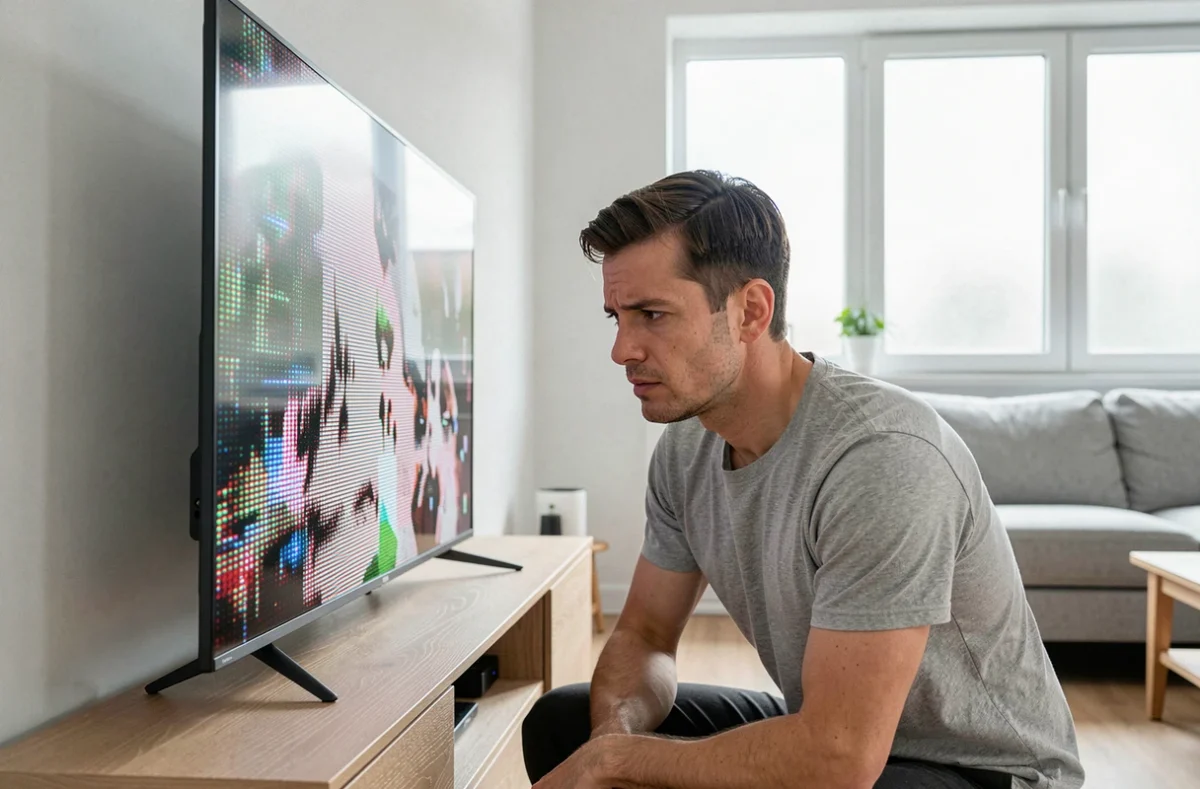
The picture freezes during a movie, dark bands appear along the edges, or the brightness fluctuates for no apparent reason: on a Samsung TV, these symptoms don’t always mean the panel needs replacing. Most of the time, the issue is caused by an unsuitable setting, a faulty external source, or an automatic feature enabled by default. Before contacting customer support, a few targeted checks can often restore a stable picture.
Samsung built-in picture test: identify the source of the issue before changing settings
When a picture issue appears, it’s tempting to adjust the brightness or contrast straight away. That’s a mistake. If the problem comes from an external device (console, set-top box, Blu-ray player) or the HDMI cable, no picture setting will fix it.
Samsung TVs include a picture test in the TV’s diagnostic menu. You can usually access it via Settings, then Support, then Self Diagnosis. The TV will display a test pattern.
- If the test pattern displays correctly (uniform colors, no stray lines or dark areas), the issue is with the source or HDMI connection, not the panel.
- If the issue persists on the test pattern, the problem is inside the TV: the panel, backlight, or main board.
- On compatible recent models, an additional HDMI diagnostic test can check the connection between the TV and each connected device.
This initial check saves you from wasting time adjusting settings that have nothing to do with the fault. When you encounter a Samsung TV screen problem, this diagnostic step is the most reliable place to start.
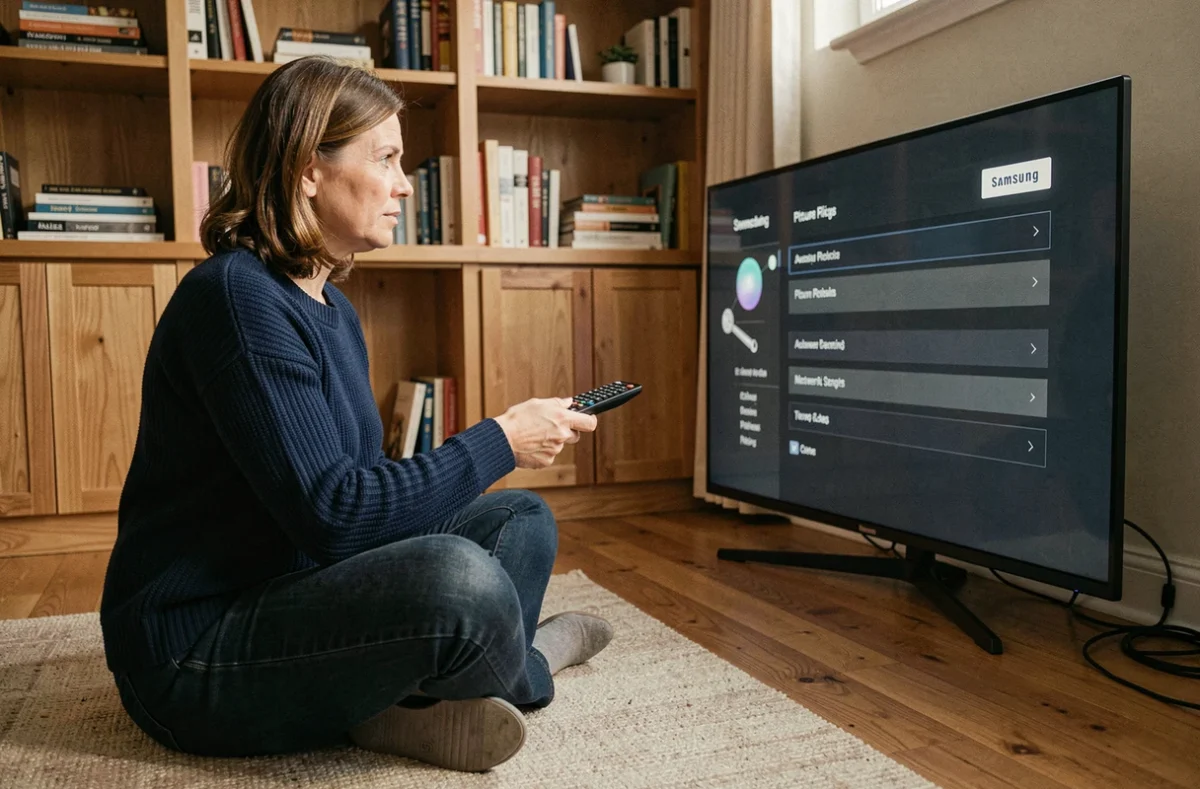
Unstable brightness on a Samsung TV: automatic features to turn off
Brightness that changes on its own during a movie doesn’t necessarily indicate a hardware fault. Several energy-saving and automatic adjustment features can change the brightness without any input from the user.
Brightness optimization based on ambient light
This feature adjusts the backlight using the built-in light sensor. In a room where lighting changes frequently (blinds, lamps), the picture may seem unstable. Temporarily turning off this option lets you check whether the brightness stabilizes.
Motion Lighting and Eco mode
Eco mode reduces power consumption by lowering overall brightness. Motion Lighting can also partially turn off the screen if no movement is detected in front of the TV. Depending on the model, both settings are found in the General or System Settings menu.
Turn them off one at a time to isolate the cause. If the picture becomes stable after disabling a specific feature, the issue is resolved without changing the picture settings themselves.
Automatic Contrast Enhancement
This feature analyzes each scene and adjusts the contrast in real time. With dark content (dark movies, blue-toned shows), it can cause noticeable changes between shots. Turning it off makes the picture more consistent, even if it initially looks slightly less dynamic.
Resetting Samsung picture settings: when and how to do it
If several settings have been changed without improving the picture, or a software update has altered how it looks, resetting the picture settings restores all sliders to their factory values. You can access this option via Settings, then Picture, then Expert Settings, then Reset Picture.
This operation doesn’t affect installed apps, connected accounts, or network settings. It only resets visual settings: brightness, contrast, sharpness, color temperature, and picture mode.
One thing to keep in mind: menus vary by model and software version. Samsung notes this in its documentation. The steps in an online guide may not exactly match those on your TV. If an option isn’t where you expect it to be, checking that the firmware is up to date may resolve the discrepancy.
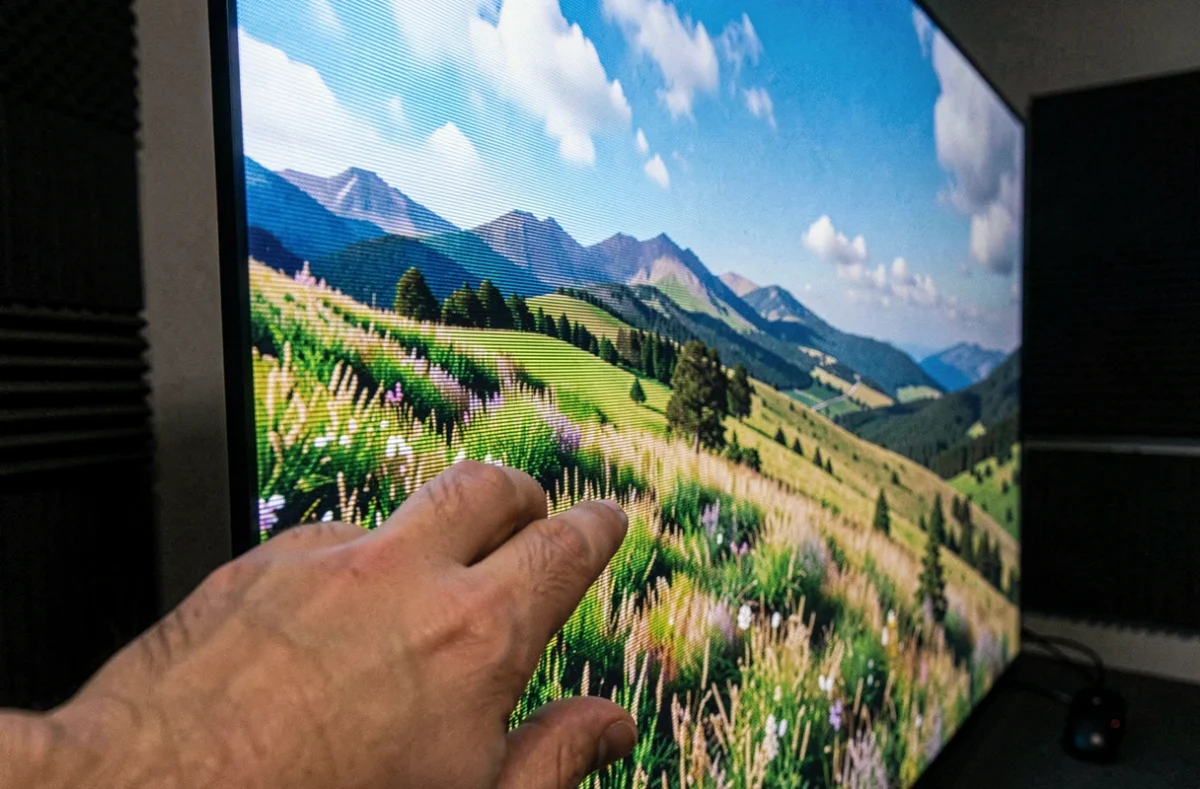
Samsung picture settings by content: movies, sports, and gaming
Once you’ve diagnosed the issue and turned off unwanted automatic features, you can fine-tune the settings for different types of content. Samsung offers several preset picture modes, but they’re not all equally suitable.
Movies and TV shows
Cinema or Movie mode generally offers the most accurate color temperature. Motion smoothing (Motion Smoothing or Auto Motion Plus) is worth turning off for movies: it removes the natural motion blur of 24 frames per second and creates an artificial look often called the “soap opera effect.” Turning off motion smoothing restores the cinematic look intended by the filmmakers.
Sports and fast-moving content
For sports, Standard mode with motion smoothing set to a moderate level reduces judder during fast pans. Local Dimming, when available on your model, improves perceived contrast in brightly lit stadium scenes.
Gaming and Adaptive Picture mode
Game mode reduces input lag, which is crucial for online gaming. On compatible TVs, Adaptive Picture mode may limit manual adjustment options to the AI settings provided by Samsung. If sliders appear grayed out or unavailable, turning off this mode restores access to all expert settings.
On Samsung OLED models, HDR activates automatically when supported by the source. If the picture looks overexposed or washed out in HDR, checking that the HDMI port in use is configured for enhanced mode (Input Signal Plus or HDMI UHD Color, depending on the generation) often fixes the issue.
Most picture issues on Samsung TVs can be fixed without technical assistance. The built-in diagnostic test, turning off automatic features, and a targeted reset are enough in most cases. The main exception is a fault that remains visible on the test pattern, which points to the need for hardware service.